To install this theme, you must have a working version of WordPress already installed. If you need help installing WordPress, follow the instructions in the WordPress Codex. The links below lead to useful information about WordPress:
- WordPress Codex – general information about WordPress and how to install it on your server.
- First Steps With WordPress – general information about many WordPress topics.
- FAQ New To WordPress – the most popular FAQs about WordPress.
- First Site Guide – easy-to-follow, step-by-step guides and tips to help you get online.
Download the theme files from ThemeForest. Go to the Downloads tab, find the RoyalTickets Theme and click the Download button. The All files & Documentation archive contains everything. The Installable WordPress file only archive is just the installable WordPress theme file.
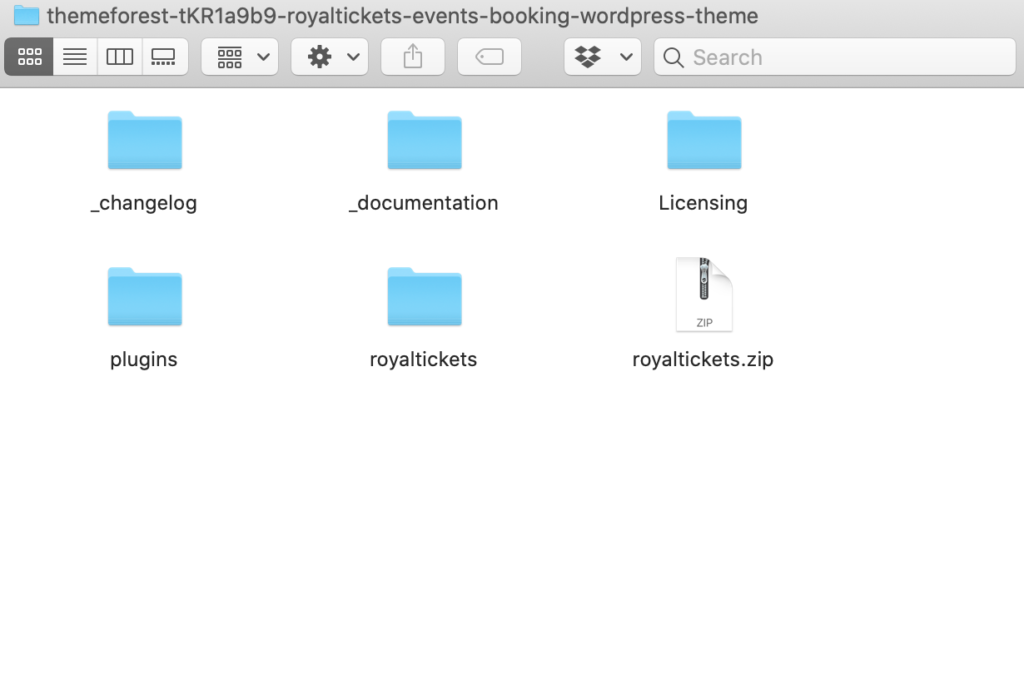
The theme package downloaded from ThemeForest contains the following:
There are two ways to install a WordPress theme: with the built-in installer, or by uploading it via FTP.
Installing with the WordPress theme installer
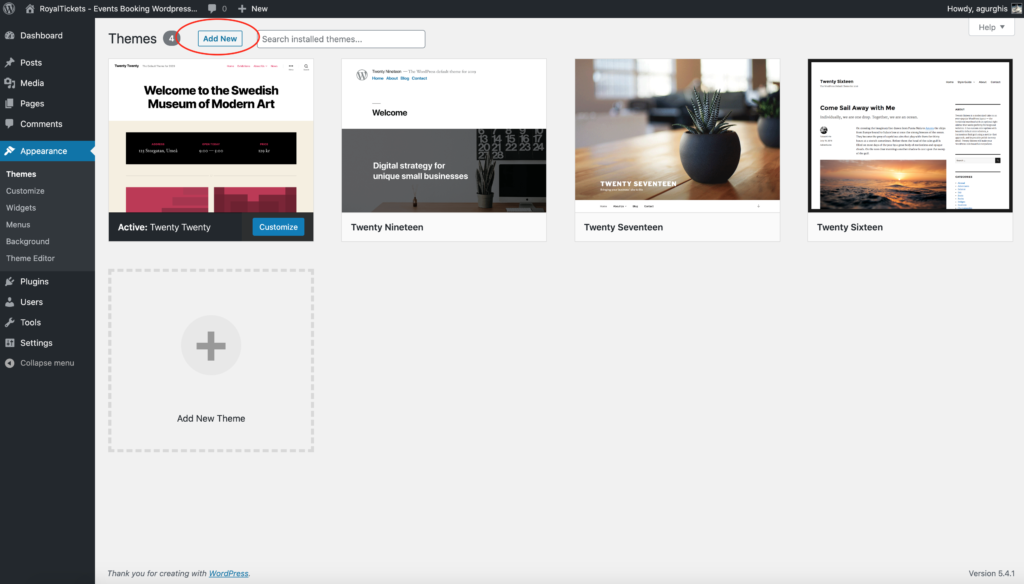
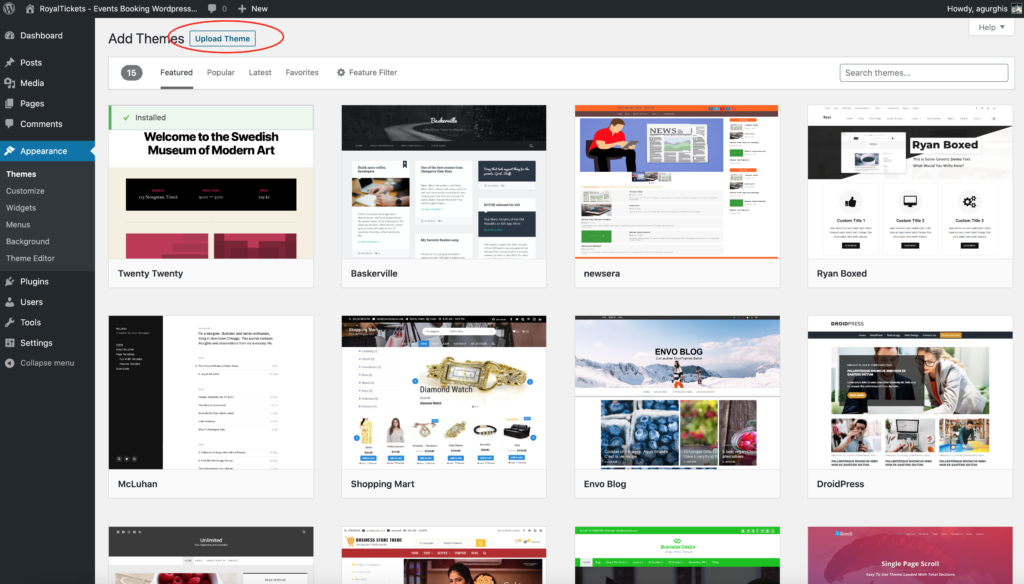
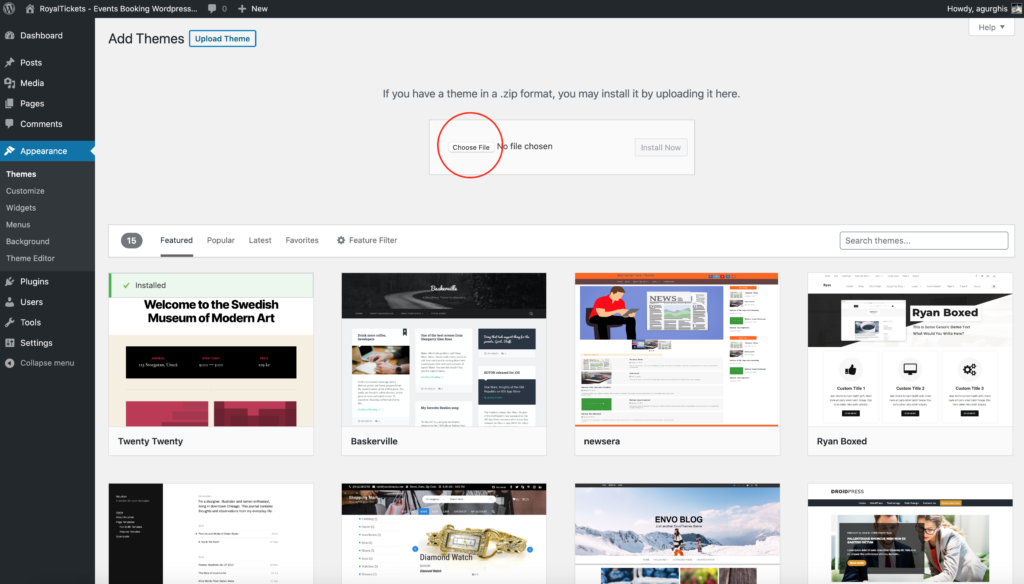
- From the dashboard, go to Appearance → Themes → Add New → Upload Theme.
- Click Choose File and select
royaltickets.zip. - Click Install Now.
Installing via FTP
This is a more advanced way to install your theme. To install RoyalTickets via FTP:
- Download the theme archive and extract the files it contains.
- Use an FTP client to access your hosting server.
- Unzip the
royaltickets.ziparchive and put its contents (a folder calledroyaltickets) in the/wp-content/themesdirectory provided by WordPress. - Go to Appearance → Themes, find RoyalTickets and activate it.
Important: After activation, go to Settings → Permalinks in your admin area and save the permalinks. This helps to get the slugs of the new custom post types right.
Installing required plugins
The RoyalTickets theme requires a set of core and additional plugins to function correctly. A plugin is an additional component that offers functionality and features beyond a typical WordPress installation. Without these plugins, most of the theme’s functionality is not available.
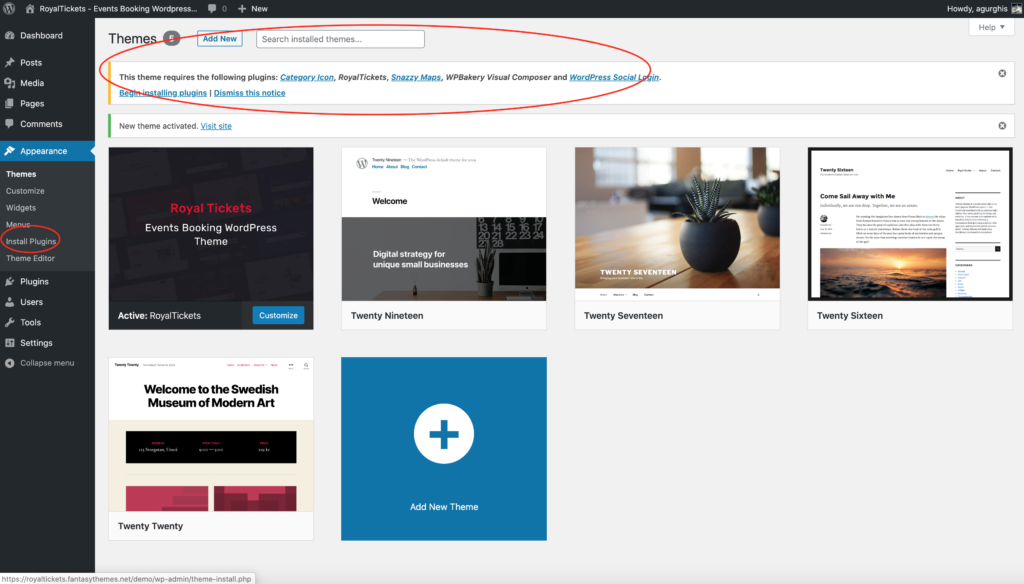
After you install the theme, a prompt at the top of your dashboard asks you to install the required plugins. Alternatively, you can do the following:
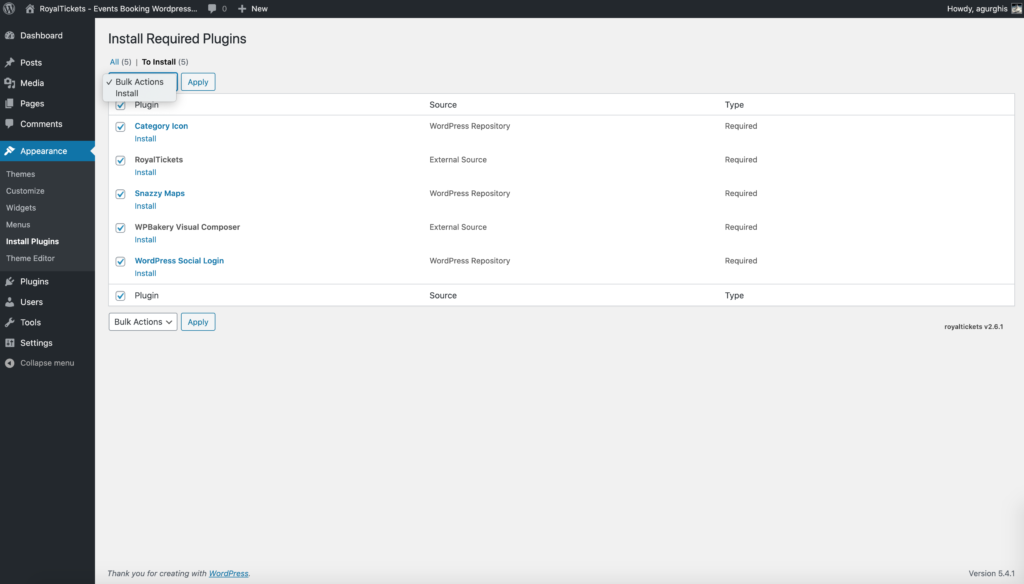
- From the dashboard, go to Appearance → Install Plugins.
- Select all the required plugins and choose Install.
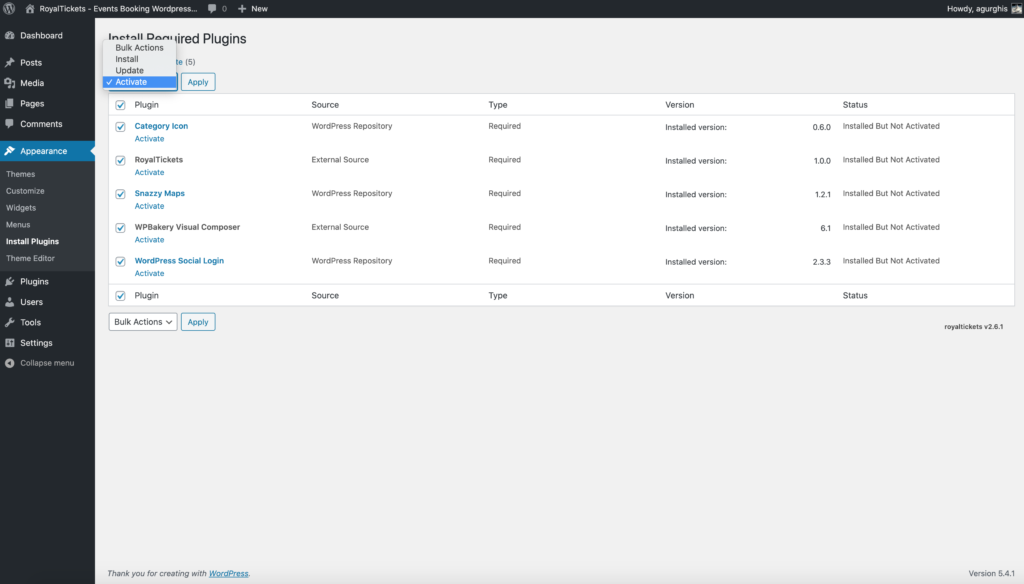
- As the last step, activate the plugins.
Bundled plugins
The RoyalTickets theme comes bundled with some premium plugins from CodeCanyon, such as WPBakery Page Builder (formerly Visual Composer), Slider Revolution and LayerSlider. They add features to your website beyond a typical WordPress installation.
Bundled plugins offer the same core features and functionality as the standalone version of the item on CodeCanyon.
Bundled plugins may ask for a purchase code for registration or activation once installed. You can simply ignore these messages, as bundled plugins do not require activation or registration. The plugins still work as intended with the theme once the theme has been activated or registered.
Importing demo content
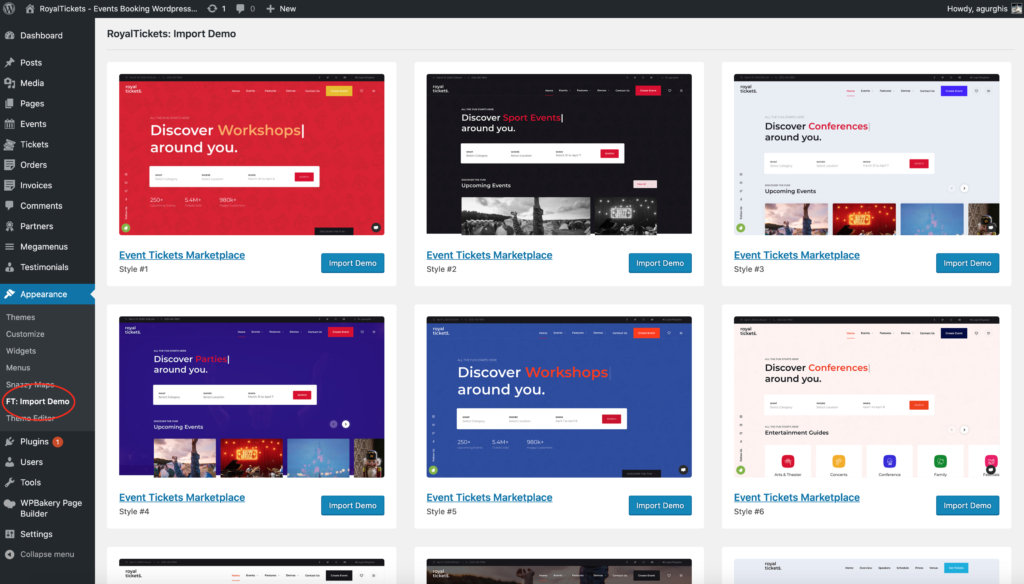
- From the dashboard, go to Appearance → FT: Import Demo.
- Choose the demo you want to install and click the Import Demo button below it.